How do I integrate Clover POS with DoorDash?
To integrate Clover with DoorDash, you must have an active partnership with both DoorDash and Clover:
If you're new to DoorDash, sign up first
If you're new to Clover, you'll need an active Clover account and a Clover online menu before continuing
From there, you can:
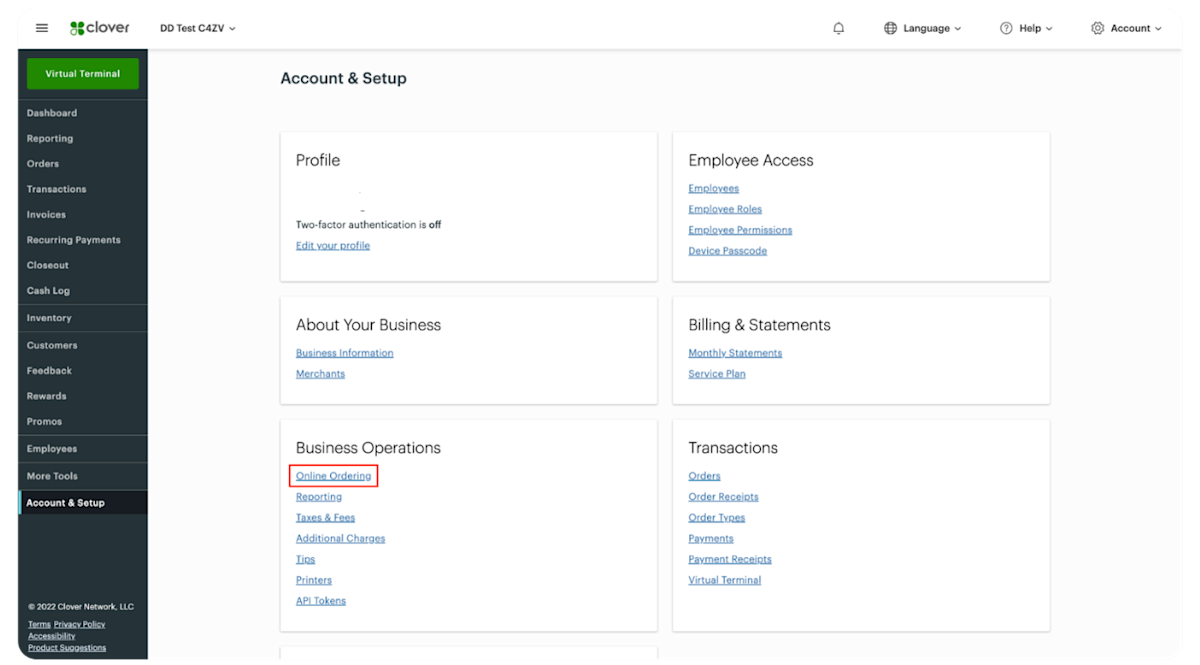
Log in to your Clover account, then select Settings on the top left-hand side
Under Business Operations, select Online Ordering
On the Sign Up tab, scroll down until you see DoorDash and select Get Started
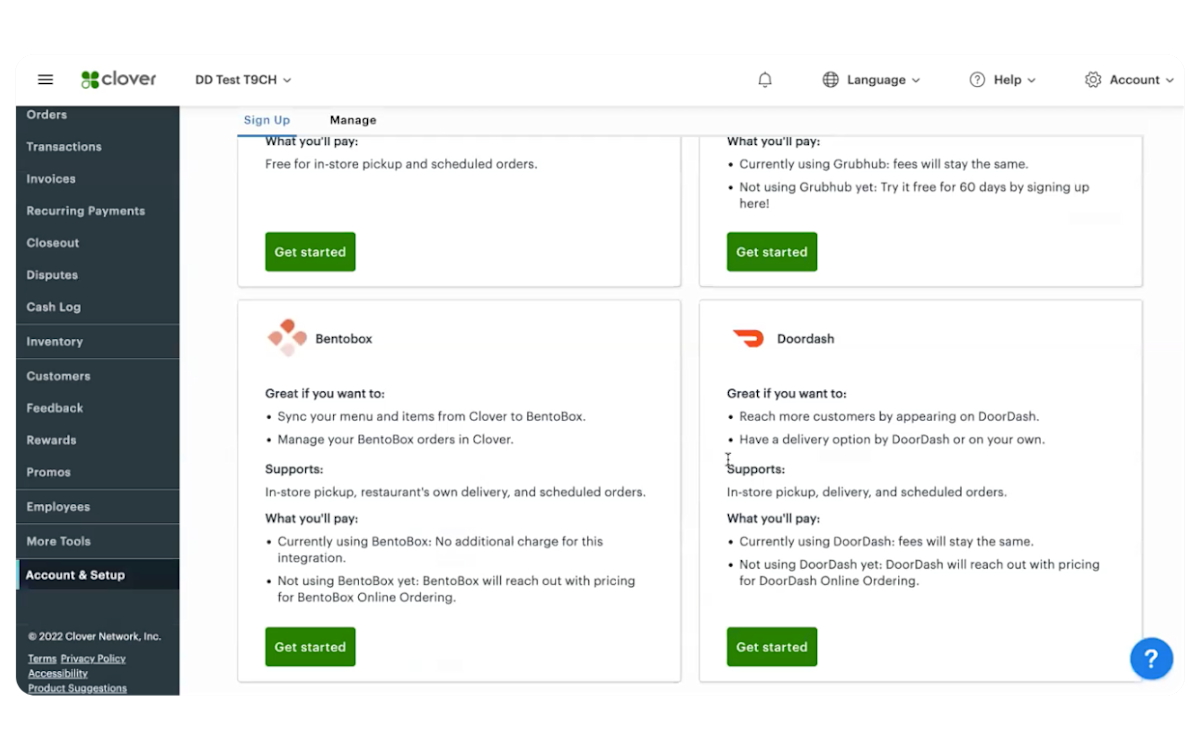
You'll be prompted to start your integration with DoorDash — please click here or see below for further instructions on how to complete your onboarding


Out of stock items
Mark items out of stock in Clover by:The integration is typically completed within 24 hours. This timeline may extend if an online menu is not configured for syncing.
How do I manage my integrated menu?
After integration, you can manage your DoorDash menu by making updates to your Clover online menu. Learn how to make updates to your Clover online menu here.
Menu updates
Changes to your Clover online menu automatically sync to your DoorDash menu in real-time.
Menu photos
If your Clover menu includes photos, DoorDash will pull eligible images, ensure they meet DoorDash photo requirements, and upload them to your menu. Only new photo URLs are synced when updates are made. Learn how to add photos to your Clover menu here.
Updating store hours
Follow these steps to update your regular and special/holiday DoorDash store hours, and these steps to pause your store during busy times.
Price adjustments
Menu prices from Clover automatically appear on DoorDash. To set different DoorDash prices, follow the price adjustment steps.
Special instructions
Customer item instructions are sent directly to your POS. To enable this feature, contact DoorDash POS Support at 855-973-1040 (US) or submit a request in the DoorDash Merchant Portal.
How to manage DoorDash orders on your Clover POS
DoorDash orders are sent directly to your Clover POS. You can monitor order status using:
The DoorDash Business Manager app
The DoorDash Tablet
The Order Manager app on Android
Adjustments, refunds, and cancellations
Customers can cancel an order at any time, but the refund amount depends on the order's status. Because Clover automatically confirms DoorDash orders once they're received, you'll need to reopen the order in your POS and process the refund there.
If you need to cancel a DoorDash order, contact DoorDash Merchant Support at 855-973-1040.
Pausing orders
You can temporarily suspend incoming DoorDash orders from your Clover account. Learn how here.
Selecting Inventory
Finding the item
Toggling Available off
Item availability syncs automatically. When inventory reaches zero, the item is removed from your DoorDash menu.

Prep times and scheduled orders
DoorDash automatically calculates prep time. To adjust prep times, contact DoorDash Merchant Support.
Scheduled orders appear in Clover as ASAP orders. DoorDash holds the order and sends it to your POS closer to fulfillment time.
Printing order tickets
DoorDash orders are automatically sent to your Clover and printed from your POS or connected kitchen printers. Here's how to set up your remote devices for printing DoorDash orders.
Merchant tips
You can opt in to accept tips on DoorDash pickup orders. Tip data flows directly into Clover. Contact DoorDash Merchant Support to enable this feature or review tip details in the Merchant Portal.
Dasher status and delivery tracking
Dasher status isn't sent to your Clover POS. You can monitor Dasher status using the Business Manager app, the DoorDash Tablet, or the Order Manager app.
Taxes and Marketplace Facilitator states
In Marketplace Facilitator states, DoorDash remits applicable taxes on your behalf. Tax amounts are still included with the order and can be reviewed in the Merchant Portal Sales Summary.
Support contacts
For POS-related issues after activation, contact:
DoorDash Merchant Support for DoorDash order or integration issues
Clover Support for Clover-specific issues
What are the limitations of the Clover integration?
Special and holiday hours: To manage special or holiday hours, update your online service hours in your Clover account.
Dasher status: Dasher status isn't shared through the Clover integration. You can still view it on the DoorDash Tablet, in the Business Manager app, or in the Order Manager app on an Android tablet.
Daypart menus: The Clover integration supports a single DoorDash menu. Dayparted menus aren't supported.