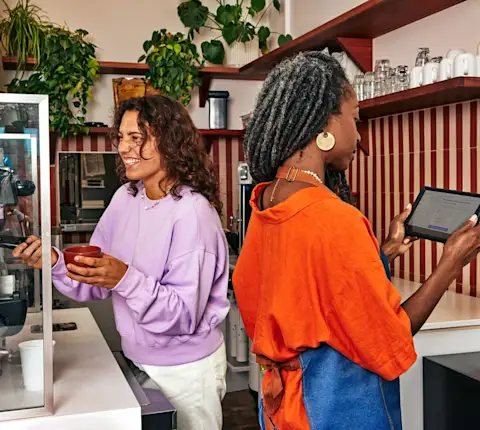
What is the DoorDash Tablet?

The DoorDash Tablet is a device that runs the DoorDash Order Manager, your central hub for managing delivery orders. With the tablet, you can:
Accept and track live orders
Adjust prep times and mark orders as ready
Update store hours and mark items out of stock
Communicate with Dashers and customers
Access DoorDash Support 24/7
How do I receive a DoorDash Tablet?
When you first sign up with DoorDash, you can choose how you want to receive order notifications — on a tablet, through your point-of-sale (POS) system, and/or on your phone.
If you've never had a DoorDash Tablet, or if your tablet was lost or stolen, you can request one from DoorDash Merchant Support:
Call +1 855-222-8111
Press 6 for tablet support
After you receive a confirmation email, your tablet should arrive within seven days.
How do I turn on my DoorDash Tablet?
Follow these steps the first time you use your tablet:
Press and hold the power button to turn on the tablet
When the screen appears, tap the DoorDash icon
Tap Let's Get Started
How do I set my Tablet up?
Watch this short video on the process of setting up your new DoorDash Tablet.
How do I log in to the DoorDash Order Manager?

The DoorDash Order Manager app lets you manage orders in real time, mark items out of stock, communicate with Dashers, and resolve issues with 24/7 Support.
If you have a DoorDash Tablet
Your tablet usually arrives already logged in. If you're signed out:
Open the Order Manager app on your DoorDash Tablet
Log in using the username and password provided
Your login details can be found:
In the email sent when your tablet shipped, or
On the back of the tablet
If you're using your own Android tablet
Download Order Manager from the Google Play Store
Open the app
Contact Merchant Support to receive a tablet username and password
Want to switch to a tablet protocol? Contact Merchant Support to request a switch.
How do I reset my tablet password?
If you forget your tablet password, you can reset it in the Merchant Portal:
Sign in to the Merchant Portal
Go to Settings
Select Account Settings
Under Tablet Settings, view your login details or reset your password