What is Online Ordering?
Online Ordering lets you accept pickup and delivery orders directly from your own channels — such as your website, Google Business Profile, Yelp, and social media.
Orders placed through Online Ordering are sent to your DoorDash tablet or point-of-sale (POS) integration. Customers can pay online, delivery orders are fulfilled by Dashers, and pickup orders are collected in store.
How do I use my Online Ordering link on my website?
When you sign up for DoorDash Marketplace, you automatically get access to Online Ordering at no additional cost. To start receiving commission-free* Online Ordering orders, add your Online Ordering link to your website.
Log in to the Merchant Portal
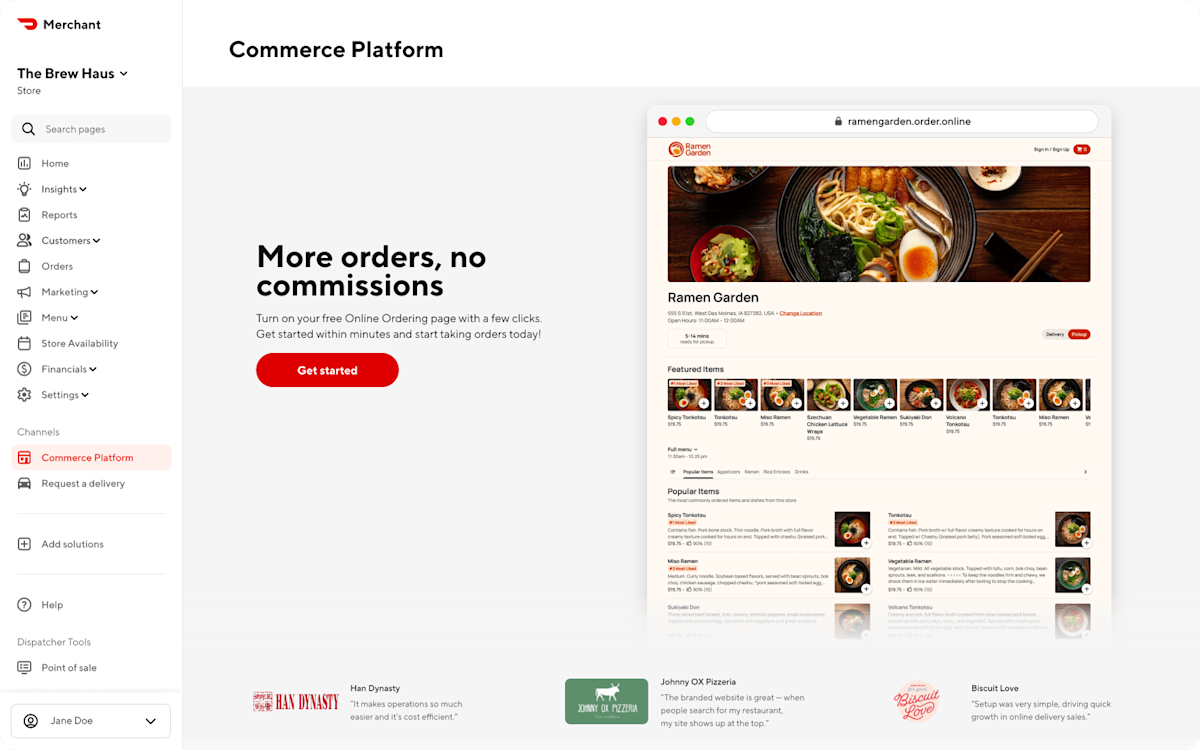
In the left navigation, select Commerce Platform
Click Get started
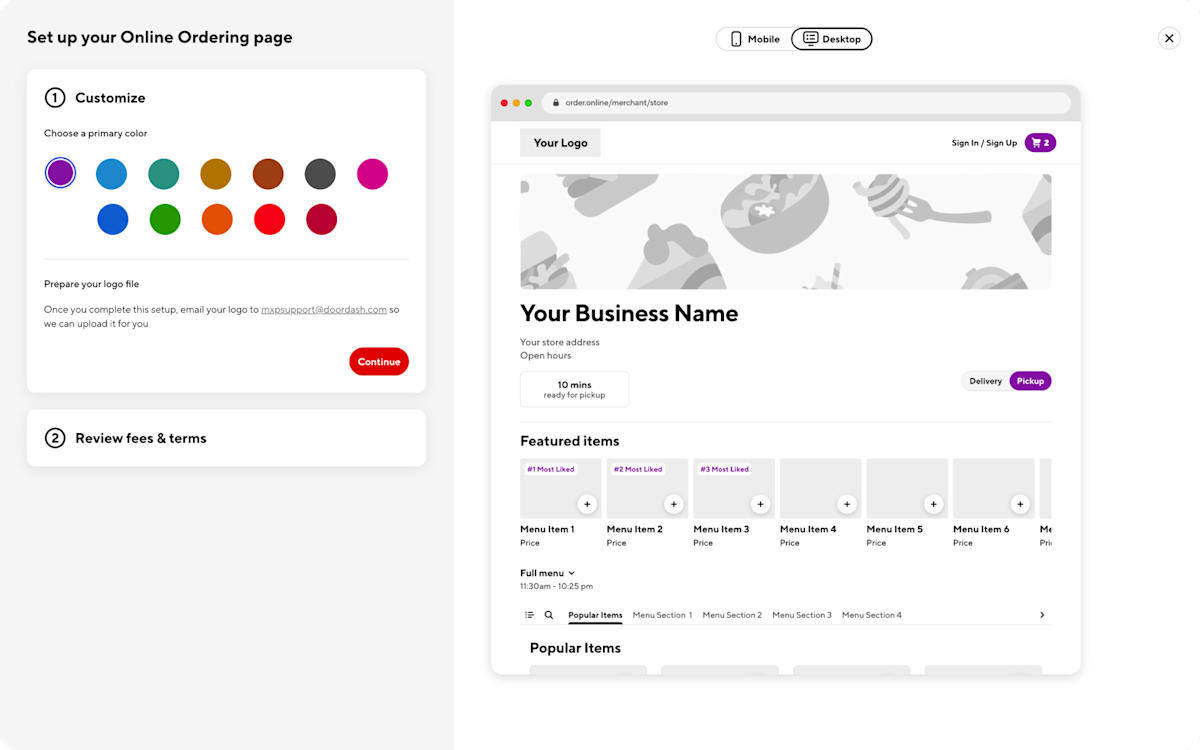
Select the color and logo to use on your Online Ordering page
Once added, go to Channels and select Commerce Platform
Copy your unique Online Ordering link
Add the link to your website


Not a DoorDash partner yet, but want to sign up for Online Ordering? Start here.
Supported website platforms
You can add your Online Ordering link to websites built on:
GoDaddy
Shopify
Squarespace
Weebly
Wix
WordPress
You can also publish your Online Ordering link on:
Google Business Profile
Yelp business page
Social media profiles
What if I don't have a website?
You can still accept commission-free orders through Google, Yelp, or social media by adding your Online Ordering link to those profiles. You can also contact Merchant Support for help building a website.
How do customers order from my restaurant with Google?

Online Ordering integrates with Google Search and Maps, allowing customers to find, order, and reorder from your restaurant without leaving Google.
When you sign up for DoorDash:
Your Online Ordering menu automatically appears on your Google Business Profile
Customers can place orders through the Order Online button
Orders are processed the same as all Online Ordering orders
Optimize your Google Business Profile for orders
To ensure customers can order successfully:
Claim or create your Google Business Profile
Make sure your business name and address match your DoorDash record
Go to Food ordering, then select Manage links, and confirm your Online Ordering link appears
If you need help, contact Google Support.
How do I add my Online Ordering link to my Google Business Profile?
Some customers prefer ordering from your website instead of directly through Google. You can add your Online Ordering link so customers can easily choose either option.
Go to your Google Business Profile
Select Edit profile, then Business information, then Contact
Add your Online Ordering link to the Website or Menu field
Select Save
Once a customer clicks Order online, they can browse your menu, add items to their cart, and check out — all without leaving Google. These orders are processed as Online Ordering orders and remain commission-free*.
Note that you can remove your Online Ordering like from Google at any time by submitting the opt-out form.
How do I add my Online Ordering link to my Yelp business page?
If you haven't claimed your Yelp business page, start there first.
From the Yelp for Business website
Go to Business Information
Select Edit next to the Website field
Enter your Online Ordering URL
Select Save Changes
From the Yelp for Business app
Select the correct store location
Tap Biz Info
Enter your Online Ordering URL in “Food Ordering and Delivery”
Select Save
How will I receive Online Ordering orders?
You'll receive Online Ordering orders the same way you receive other DoorDash orders — through your DoorDash tablet, POS system, or email (if enabled).
Delivery orders are fulfilled by Dashers
Pickup orders are collected by customers in store
Orders placed through your website, Google, Yelp, or social profiles are all processed as Online Ordering orders.
What customer data do I get from Online Ordering?
Online Ordering provides access to customer details such as name, email, and ZIP code through Report Builder.
Exception: Orders placed directly through Google don't include customer details, but a masked phone number is available for up to 30 minutes after delivery.
How do I run promotions for Online Ordering?
You can create promotions that encourage customers to place orders through your Online Ordering link, such as discounts or delivery offers.
To create a promotion:
Log in to the Merchant Portal
Select Marketing, then Run a campaign
Choose Online Ordering
Select a promotion type and follow the prompts
Promotions apply only to orders placed through Online Ordering and can be updated or ended at any time.
How do I refund an Online Ordering order in the Merchant Portal?

Log in to the Merchant Portal and select the Orders tab
Click on the History tab and use the dropdown menu to filter orders
Open the order you want to refund
Select Issue Refund
Choose whether to refund the entire order or specific items
How do I refund an Online Ordering order on the DoorDash Tablet?

Open your DoorDash Tablet and locate the order in Order History
Select Issue with Order on the top right
Choose whether to refund the entire order or specific items
Select Send Refund — the refund is processed immediately, and the customer is notified by email