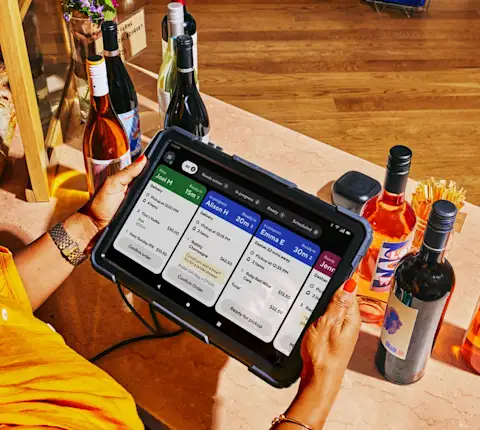
How do I adjust pickup time on my DoorDash Tablet?
You can adjust prep time only if a Dasher isn't assigned. Here's what to do:
On your tablet, go to Live Orders and select the All tab
Select the order you want to update
Do one of the following:

Tap the Ready in Time button at the top of the order ticket
Tap the order ticket to open Edit Order Details
Adjust the prep time
You can update prep time for New, In Progress, or Scheduled orders in five-minute increments.
How do I contact a customer or Dasher from my DoorDash Tablet?
Merchants can contact customers or Dashers during an active order or after pickup. This is done using live chat or via phone, depending on the situation.
Chatting with a customer
Only merchants can initiate customer live chats. This allows merchants to clarify special requests or offer item replacements directly in the tablet:
Open Live Orders and select the order
Tap the Chat icon from either Order Details or the Out of Stock flow
Type your message and tap Send
When the customer replies, you'll see a notification or yellow badge on the order ticket
Tap the notification or the Reply button to re-open the chat window
Calling a customer or Dasher
Open Live Orders (for active orders) or Order History (for past orders)
Select the order
Tap the phone icon next to the customer's or Dasher's name
Enter your store phone number
Your phone number will be masked, and the caller ID will appear as DoorDash.

How do I replace items, issue refunds, adjust pricing, or mark items out of stock?
When an item is unavailable, you can make order-level adjustments directly from your tablet:
Open Live Orders and select the order
Select the affected item, or choose Issue with order → Mark Out of Stock
Choose one of the following options:
Mark out of stock: Runs until end of day, for four hours, or indefinitely
Replace item: Use when a suitable replacement is available
Refund item: Refund for items you can't provide
Add charge: Up to $5 for special requests; only available if special requests are enabled
Tap Confirm Order to apply the update

How do I contact Support from my DoorDash Tablet?
If you need help beyond adjusting an order or contacting a customer, you can reach Merchant Support directly from your tablet.
Open Live Orders or Order History
Select the order
Tap Contact Support
Choose Call or Chat
Select the issue, add details, and start the conversation

How do I block a Dasher from my DoorDash Tablet?
If you want to block a Dasher after an order:
On your tablet, open Orders
Select the order associated with the Dasher
Tap Rate
Select the Dasher(s)
Choose Block Dasher, provide feedback, and tap Submit