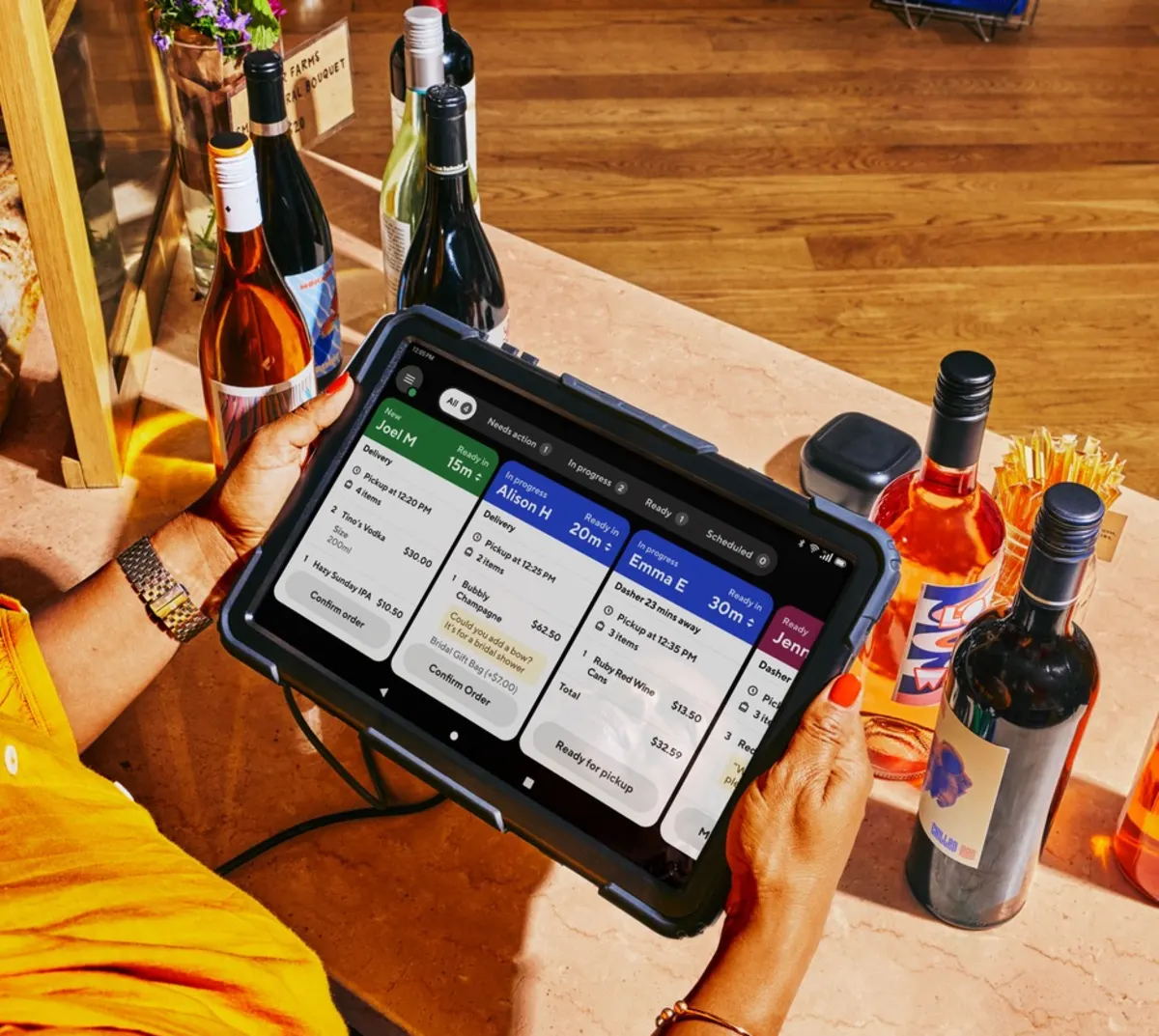
What ways can I view and receive orders on DoorDash?
You can view and receive orders on DoorDash through:
Merchant Portal: The Merchant Portal is a desktop tool used to manage deliveries, payments, hours, and menus. You can also edit account settings, update your store, view data information, and view your financials, all from one location.
DoorDash Merchant Tablet: With a DoorDash tablet, you can handle orders in real-time, update availability, communicate with Dashers and customers, and resolve order issues.


DoorDash Business Manager App: The Business Manager App installs on your phone and acts like a mobile command center. Its self-serve Live Order Management lets you refund orders, make substitutions, and resolve issues without calling Support.
POS Integration: You can integrate your POS with DoorDash to make it easier to track sales, update menus, and provide consistent menu information.
On top of how to pause or cancel your DoorDash orders in the Merchant Portal, here’s how to adjust existing orders on your DoorDash Tablet.
How do I add pickup instructions for Dashers and customers?
Clear pickup instructions help reduce delays and confusion during pickup. Regardless of whether you use a POS integration or tablet, you can add instructions for both Dashers and customers in the Merchant Portal. Here's how:

Add Dasher pickup instructions
In the Merchant Portal, navigate to Settings and click on Account Settings
Select Edit under Dasher Pickup Instructions
Choose the option that fits your needs and add optional details, such as:
Where Dashers should park
Where to wait inside your store
Areas Dashers should avoid
Select Save Changes
Add customer pickup instructions
In the Merchant Portal, go to Account Settings
Select Edit next to Customer Pickup Instructions
Enter clear, concise instructions customers should follow when picking up their order
Select Save
How do I know if an order is pickup?
You can identify pickup orders directly in the Merchant Portal.
In the Merchant Portal, go to Orders
Review the Fulfillment type column doe orders labeled Customer Pickup
Check the Time column to see the estimated pickup time

How do I mark an item out of stock in the Business Manager app?
If an item or modifier is unavailable, you can mark it out of stock from the Business Manager app.
In the Orders view, select the active order
Select Out of stock
Choose the item or modifier that's unavailable
Tap Next, then select how long the item will be out of stock:
For a few hours
Until the end of the day
Indefinitely (the item will automatically become available again after the selected time)
If needed, select the ? icon to contact Support. Support can help coordinate next steps with the customer, such as a replacement or removal
How do I cancel a DoorDash order?
If you're unable to fulfill an order due to an out-of-stock item or kitchen issue, you can cancel the order from your DoorDash Tablet. You must own a tablet to cancel orders.
On your tablet, go to Orders
Select Issue with Order in the top right corner
Select Yes, Cancel this Order
Review any fees associated with the cancellation
Confirm the reason for canceling and complete the cancellation

Canceling an order can negatively impact customers and Dashers and may result in fees. You'll always be prompted to review the impact before completing the cancellation.
Canceling orders with a POS integration
Merchants can't cancel orders with a POS integration. You must have a DoorDash Tablet to cancel orders. To pause orders, head to the Merchant Portal.
In the Merchant Portal, tap Store Availability
To pause your store across all channels, click on Pause All Ordering Channels
If your store has high avoidable wait times, DoorDash will automatically pause orders to your store for up to 30 minutes, allowing you time to catch up on orders.
How do I contact a customer or a Dasher?
You can contact customers or Dashers through the Business Manager app or DoorDash Tablet – both of which use your Merchant Portal credentials.
Business Manager app
To resolve order issues, offer substitutions, or mark items out of stock:
Select the phone icon next to the customer's or Dasher's name
If changes are needed after contact, select Contact Support in the top right corner
Make sure to confirm substitutions or refunds in real-time to ensure order details stay accurate.
DoorDash Tablet (active or completed orders)
To contact customers or Dashers on ongoing orders:
On your DoorDash tablet, open the active order
Select Issue with Order
Select the customer or Dasher you want to contact
Enter the phone number you want DoorDash to use to connect the call
Select Submit and DoorDash will connect the call within 30 seconds

If the customer has opted in to be contacted for out-of-stock items, you may see Contact [Customer name] directly on the order screen, under Call the Customer.
Click Next
Add a phone number so DoorDash can connect you with the customer
Hit Submit
If you run into any issues, view the Support page. Depending on the issue, you may also cancel the order or adjust pricing in the tablet.

With a POS integration
To contact a customer about an active order, you'll need to call DoorDash Support. They can assist you further with:
Making status updates
Modifying/canceling live orders
Reporting items as unavailable
Self-Delivery merchants
If you use Self-Delivery, customer contact information appears directly on the tablet, allowing you to contact customers without going through DoorDash Support.

How do I block a Dasher?
If you're dissatisfied with a Dasher's service, you can block them on your tablet or the Merchant Portal.
Log in to the Merchant Portal and go to Orders
Select the relevant order
Select Rate Dasher
If multiple Dashers are listed, select the Dasher you want to block
Select Block Dasher
Provide feedback and select Submit