On DoorDash, your menu does the selling for you — and its quality comes down to two things every customer notices before they order:
Menu photos: The first thing customers see, and often what decides the order.
Menu descriptions: The words that answer "what’s in it?" and give customers the confidence to buy.
Both are fully in your hands, and improving them is one of the most powerful moves you can make for your store. This guide shows why each one matters, how to update it, and the free DoorDash tools that do most of the work for you.
Menu quality and your road to Most Loved
Your Merchant Status shows how your store is performing on DoorDash, and it’s your path to Most Loved — the highest recognition, and the only status customers can see, giving you the highest level of visibility and exclusive placements on the app. The Merchant Status is not a ranking system; it’s a clear read on the quality signals that shape how your store performs. See how Merchant Status works.
Two of those signals start with your menu: your photos feed Photo Coverage directly, and clear, accurate descriptions, in addition to increasing customer confidence and powering search optimization, help cut down on missing or incorrect items and cancellations.
That makes menu quality one of the most reliable levers you control on the road to Most Loved. Here’s how to improve both:
A great photo wins the order
Customers eat with their eyes first — which is exactly why Photo Coverage is one of the four operational signals behind your Merchant Status. A clear, appetizing photo is often what turns browsing into an order; in fact, 87% of consumers have chosen what to eat on a delivery app based on an appealing photo, according to DoorDash’s 2026 Restaurant Industry Trends Report. And on DoorDash, reaching at least 50% menu photo coverage can increase sales by 13% on average; the same move that strengthens your Photo Coverage signal.

How to add and improve your photos
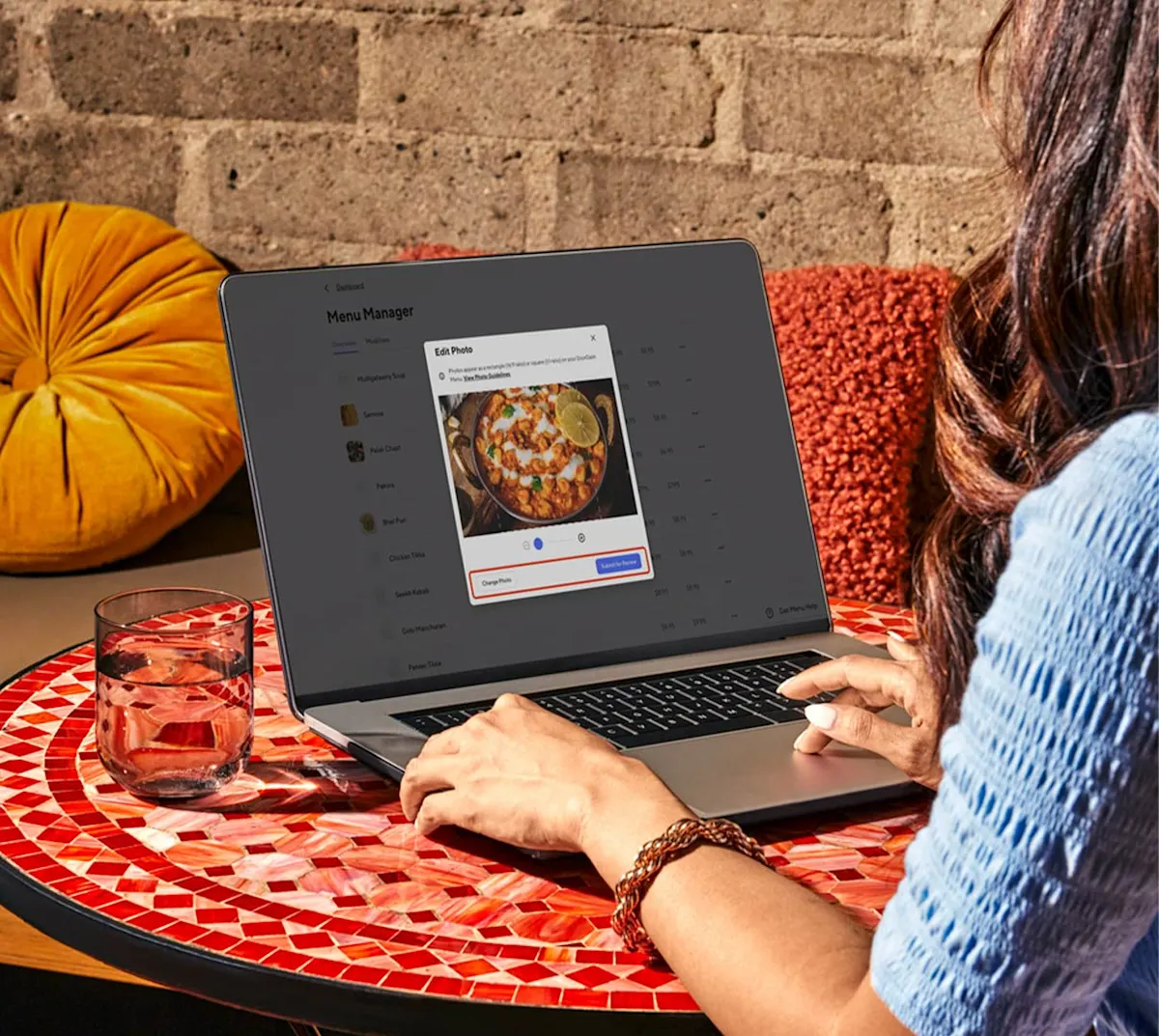
Use the Merchant Portal to add and edit menu items, including menu photos, which should follow some important guidelines (Here’s a guide to understand important parameters on DoorDash menu photos). Good news, though: You don’t have to start from scratch; DoorDash provides a few easy ways to close the gaps in your photo coverage:
Start with your Photo Coverage signal: your Merchant Status (Insights › Most Loved) shows your Photo Coverage and points to the items that don’t have an image yet, so you know exactly where to begin.
Don't have professional photos? Don't worry, Smart Photo Tools are here to help. Right in the Menu Manager, you can turn quick phone photos into polished menu photos, no editing software required. AI Retouch improves lighting and removes distracting backgrounds, Replate creates a cleaner presentation, and Match Menu Style keeps your menu visually consistent.
Reuse your Instagram photos — already posting your dishes on Instagram? Connect your account to pull those photos straight onto your menu.
Get professional photos for free — no great shots yet? Book a free DoorDash photoshoot. A photographer captures up to 20 menu-item photos plus a header shot of your store; the only cost is the food, and Marketplace Premier merchants can receive a $200 credit toward it. You can use the photos on DoorDash, your own website, and social media.
Menu descriptions: small details that build confidence
93% of consumers have chosen items on a delivery app because of detailed, appealing menu descriptions, according to DoorDash’s 2026 Restaurant Industry Trends Report. On DoorDash, adding descriptions to at least half your menu can increase sales by over 6% on average. And clear descriptions do more than drive orders:
They set expectations. Spelling out what’s included, portion sizes, or sides means customers know exactly what’s coming — which can help reduce missing or incorrect item reports and avoidable cancellations.
They help customers find you. DoorDash uses your item names and descriptions to apply food labels like vegan, gluten-free, or spicy, so your dishes show up in the right searches and dietary filters.
They make your food more appealing. The right couple of adjectives can make a dish sound as good as it tastes.
What a strong description includes
A good description does the job your staff would do in person — answering "what’s in it?" before a customer has to ask. Keep it short, specific, and easy to scan on a phone:
Name key ingredients ("Grade A, pasture-fed beef with cheddar")
Add a descriptive adjective or two — fresh, smoky, house-made
Note dietary and allergen details
Include serving sizes or piece counts for shared plates
Keep it brief — one or two lines is plenty
For more examples, see DoorDash’s guide on how to write food descriptions.

Generator to nail descriptions effortlessly
Short on time? The Item Description Generator can write them for you. In Menu › Menu Manager, open an item and click Write with AI (or Rewrite with AI if one already exists). It uses details you’ve already added — the item name, photo, and modifiers — to draft a description. Choose a tone to match your brand, edit anything you like, and save. It’s available in both the Merchant Portal and the Business Manager App. (AI-generated text shows a short disclaimer until you edit it yourself.)
See where to focus first
You don’t have to guess what to fix first. In the Merchant Portal, go to Insights › Most Loved to see how you’re performing across each signal and your recommended next action. If Photo Coverage is your gap, start with your bestselling items. You don’t need to fix everything at once — small, consistent improvements add up over time.
Improve your menu quality one step at a time
Menu quality isn’t about being perfect — it’s about being consistent. Pick one item today: add a photo, sharpen a description, or fix a detail that’s out of date. Check your status at the start of each month, focus on your recommended next action, and keep going. That’s how strong stores keep moving along the Road to Most Loved.